
How to set Intel E810 for StarWind NVMe-oF Initiator with Intel E810. RDMA use case
- Troubleshooting
- March 23, 2026
Description
When using Intel E810 series network adapters, StarWind NVMe-oF Initiator might not discover or connect to an NVMe-oF target over RDMA. This issue is typically caused by incorrect RDMA or NIC configuration on systems using Intel E810 adapters.
Please note that this KB covers third-party hardware and software optimization. Its subject is not directly related to StarWind and DataCore products. Please consider reaching out to the hardware provider’s support for up-to-date information and integration steps.
Please also make sure to verify general RDMA connectivity between the target and initiator before proceeding.
Symptoms
- RDMA discovery fails
- Connection to the NVMe-oF target over RDMA fails
- Discovery over TCP works correctly
- RDMA functionality in general appears unavailable or misconfigured
Cause
The issue is usually caused by one or more of the following:
- Intel drivers are not installed or are outdated
- RDMA User Mode driver missing
- NetworkDirect Technology is not set to RoCEv2
- Jumbo Frames disabled
- Flow Control disabled
- RoCEv2 Frame Size mismatch
- RDMA routing is not enabled across subnets
Resolution
- Install Intel Network Drivers. Download and install the appropriate Intel driver for a given OS.
- Install Intel Administrative Tools (Optional) https://www.intel.com/content/www/us/en/download/2593/administrative-tools-for-intel-network-adapters.html
- Install RDMA User Mode Driver: https://www.intel.com/content/www/us/en/download/15084/intel-ethernet-adapter-complete-driver-pack.html
- Install the RDMA User Mode Driver included in the package.
- Verify RDMA Services. Run the following PowerShell command:
Get-Service "*rdma*" | Select Name, DisplayName, Status
- Ensure RDMA-related services are present and running.

- Verify RDMA adapter status.
Check RDMA capability with
Get-NetAdapterRdma
The adapter should have TRUE under Enabled.

- Configure NetworkDirect Technology
Set NetworkDirect Technology to RoCEv2 via PowerShell:
Get-NetAdapterRdma |Get-NetAdapterAdvancedProperty -DisplayName "NetworkDirect Technology" |Set-NetAdapterAdvancedProperty -DisplayValue RoCEv2
Verify:
Get-NetAdapterRdma |Get-NetAdapterAdvancedProperty -DisplayName "NetworkDirect Technology."
Alternatively, it can be done from GUI:
- Open Device Manager
- Select the Intel E810 adapter
- Open Advanced Settings
- Set NetworkDirect Technology to RoCEv2
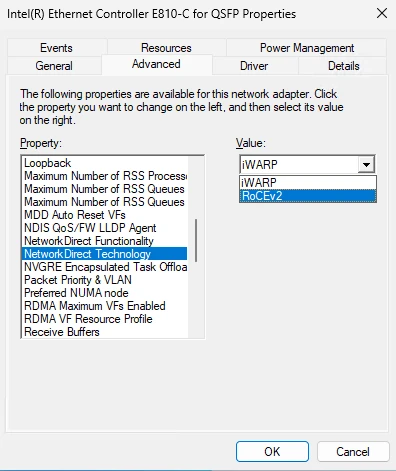
Verify the settings via PowerShell:
Get-NetAdapterRdma | Get-NetAdapterAdvancedProperty -DisplayName "NetworkDirect Technology"

- Enable Jumbo Frames:
Go to Device Manager ->Select the Intel E810 adapter -> Find Jumbo Packet -> Set Jumbo Packet to 9014
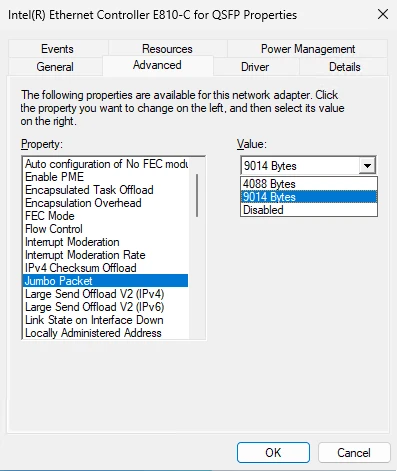
NOTE: Make sure to align the Jumbo Packet value on the entire network stack: switches and the target NICs. Verify the transmission settings with ping -f -l 8000 <target IP> - Enable Flow Control under the Advanced settings of the NIC.
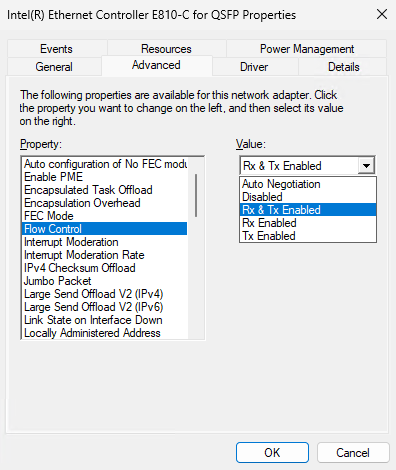
- Check RoCEv2 Frame Size.
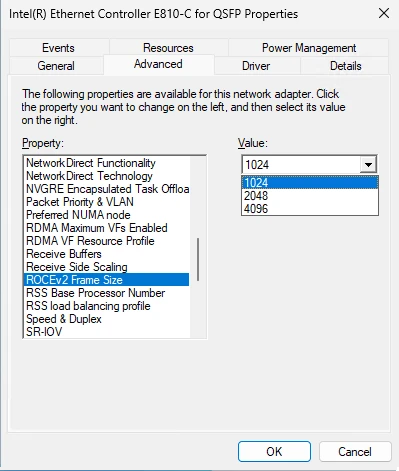
- Allow RDMA traffic across IP subnets if needed:
Set-NetOffloadGlobalSetting -NetworkDirectAcrossIPSubnets Allowed
Conclusion
Proper configuration of Intel E810 network adapters is essential for enabling reliable RDMA functionality with the StarWind NVMe-oF Initiator. Most connectivity and discovery issues stem from incomplete driver installation, incorrect RDMA settings, or mismatched network configurations rather than problems with the NVMe-oF stack itself.
Following the steps outlined in this guide should resolve the majority of RDMA-related connectivity issues with Intel E810 adapters.
