How to check ISCSI paths on Windows Server, VMware ESXI and Proxmox
- Explanation
- June 04, 2026
Introduction
Ensuring shared storage high availability is critical for any virtualized environment. This being said, it is important to incorporate checks of iSCSI multipathing configuration and functioning in the routine health checks. This article provides instructions on how to check StarWind HA devices’ state, make sure that iSCSI sessions are connected, and validate path health across three major platforms: Windows Server, VMware ESXi, and Proxmox VE.
Checking StarWind HA devices’ status
It is important to start any check from StarWind’s highly available (HA) devices synchronization status. There are several ways to check it.
For environments that have StarWind VSAN deployed as a Windows-based service, StarWind Management Console should be used.
For environments that have StarWind VSAN deployed as CVM or Linux bare-metal StarWind VSAN installations, both StarWind CVM WEB UI and Windows-based StarWind Management Console can be used.
NOTE: Both options are applicable to commercial and free StarWind VSAN editions.
Option 1: StarWind VSAN CVM WEB UI
- Using a browser, connect to StarWind VSAN CVM WEB UI.
- Go to the Appliances tab, make sure that all CVM nodes are listed ONLINE.
NOTE: If any is OFFLINE, and no hardware or network failure is found contact StarWind Support https://www.starwindsoftware.com/support-form. - Go to the LUNs menu.
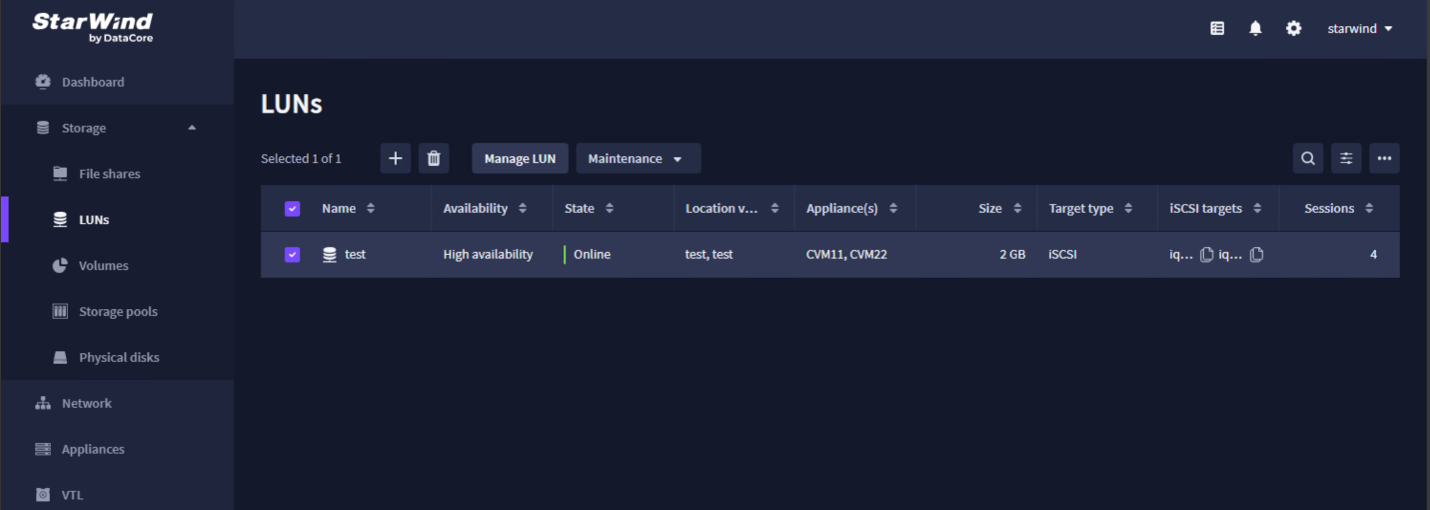
See if all StarWind LUNS are Highly Available and Online.
NOTE: If a LUN is listed as Standalone, the storage cannot be highly available by design. Proceed with caution.
Option 2: Windows-based StarWind Management Console
NOTE: Windows-based StarWind Management Console can be downloaded from StarWind CVM WEB UI: Log in to WEB UI > Gear-shaped button > Downloads > StarWind Management Console. Download and install the application. During the installation process, select StarWind Management Console from the dropdown menu.
For StarWind VSAN deployed as a Windows application, use https://starwind.com/tmplink/starwind-v8.exe.
- Open StarWind Management Console and start it from the Windows tray.
- Add the servers if needed (localhost address or hostnames for Windows-based scenarios or StarWind CVM machine IP address).
- Double-click each server.
- Expand each target.
- See if the devices are Synchronized and check any warnings on them.
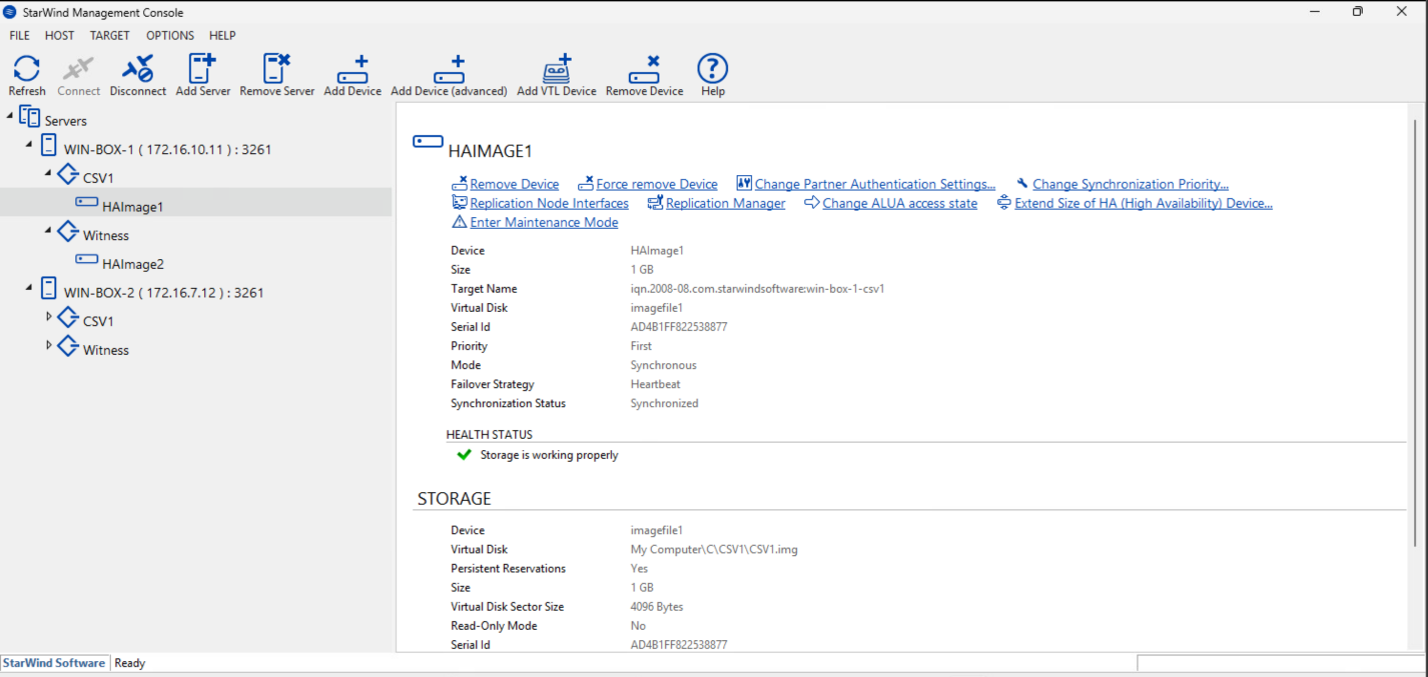
If a device has a state other than Storage is working properly, the corresponding ISCSI target may be unavailable for client connections.
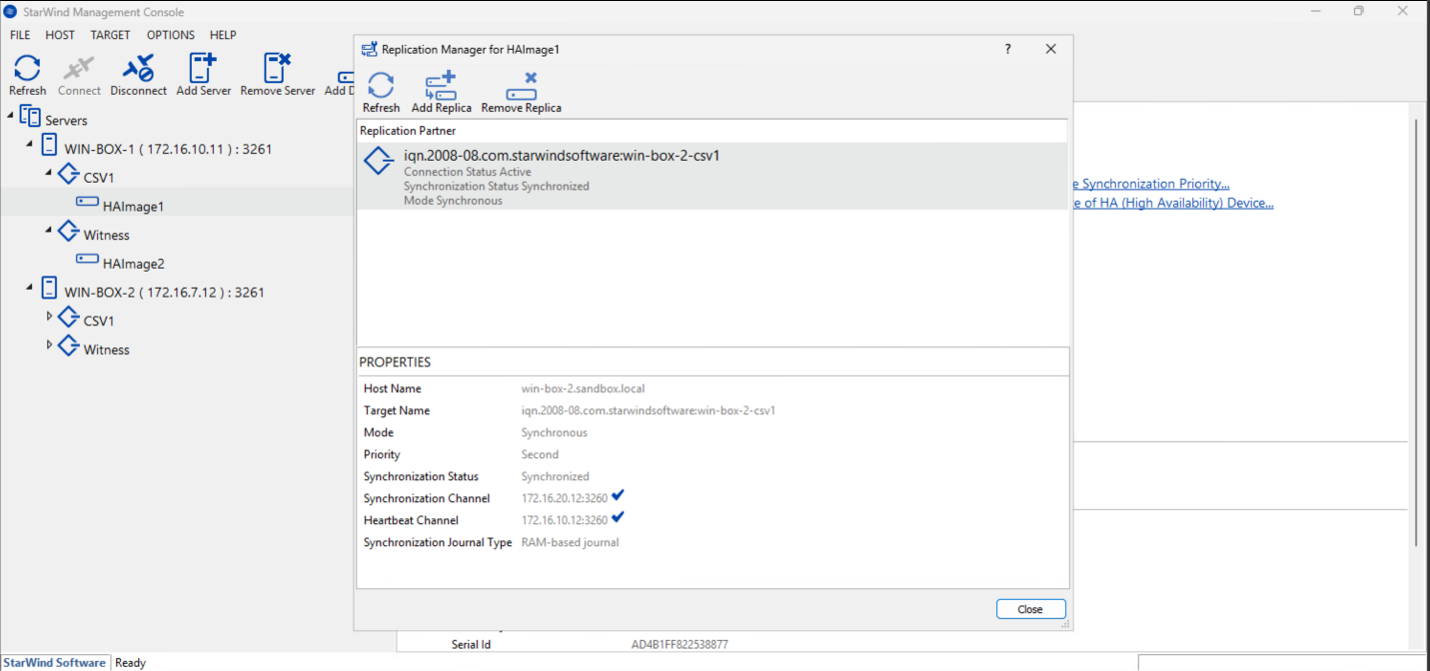
Press Replication Manager button to open it and check the status of the partner device. The status should be Synchronized as well.
Checking iSCSI Targets status on Windows Server
Option 1: Using the iSCSI Initiator GUI
- Open the iSCSI Initiator from the Start menu or by running iscsicpl.exe
- Navigate to the Targets tab.
- Click the Refresh button under the Discovered targets section.
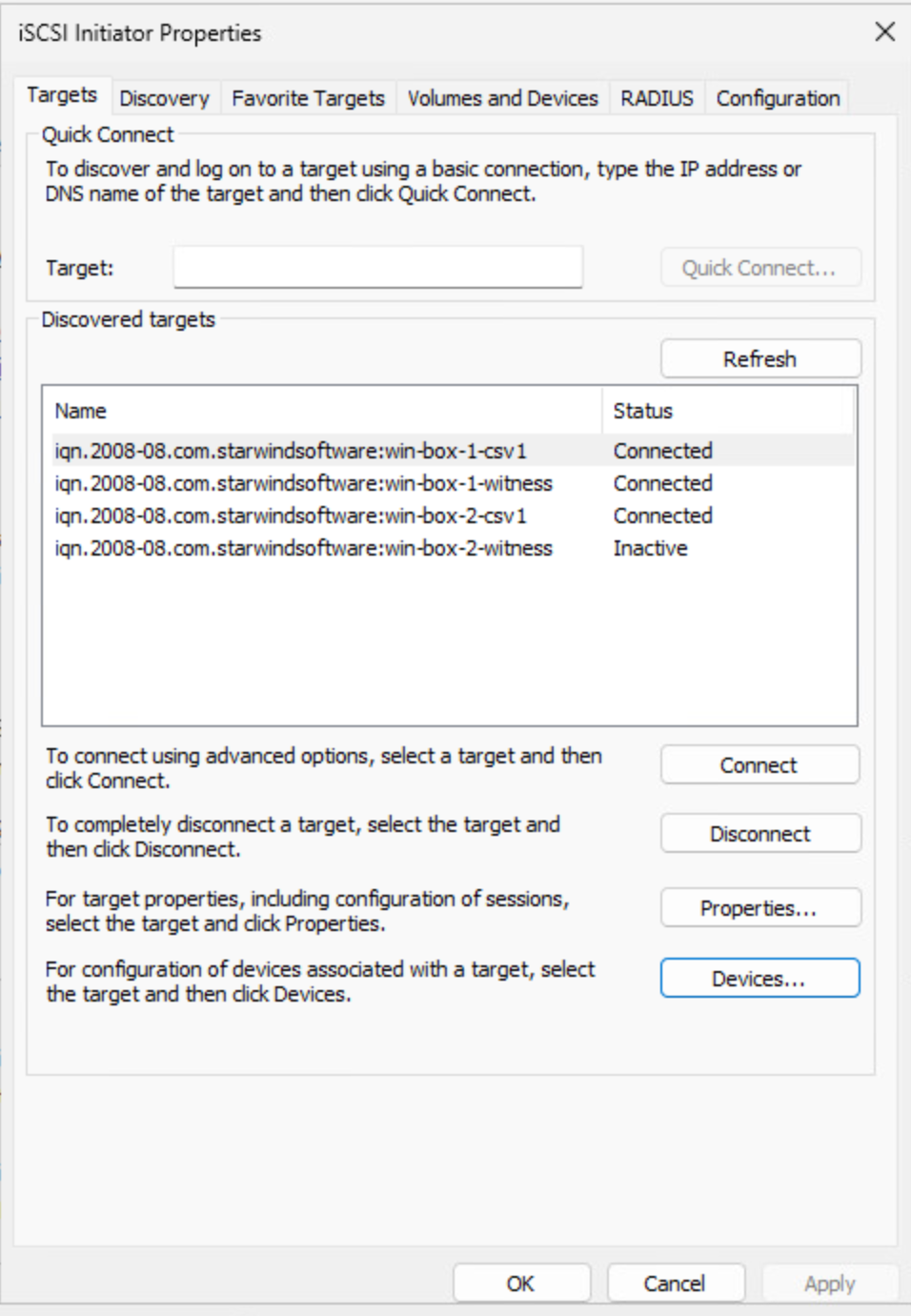
- Review the active sessions. The targets from all replication partners and standalone hosts should be listed. All of them should be in the Connected state.
NOTE: Witness target on replication partners in Hyperconverged scenarios where VSAN is installed as a Windows-native application can be Inactive.
The ISCSI sessions on a simple 2-nodes setup with Witness and CSV targets should look like below:
Option 2: Using PowerShell
To quickly check iSCSI sessions via CLI, run the following cmdlet. StarWind HA devices must be connected from each replication partner. Pay attention to the IsConnected : True property.
Get-IscsiSession
Sample Output:
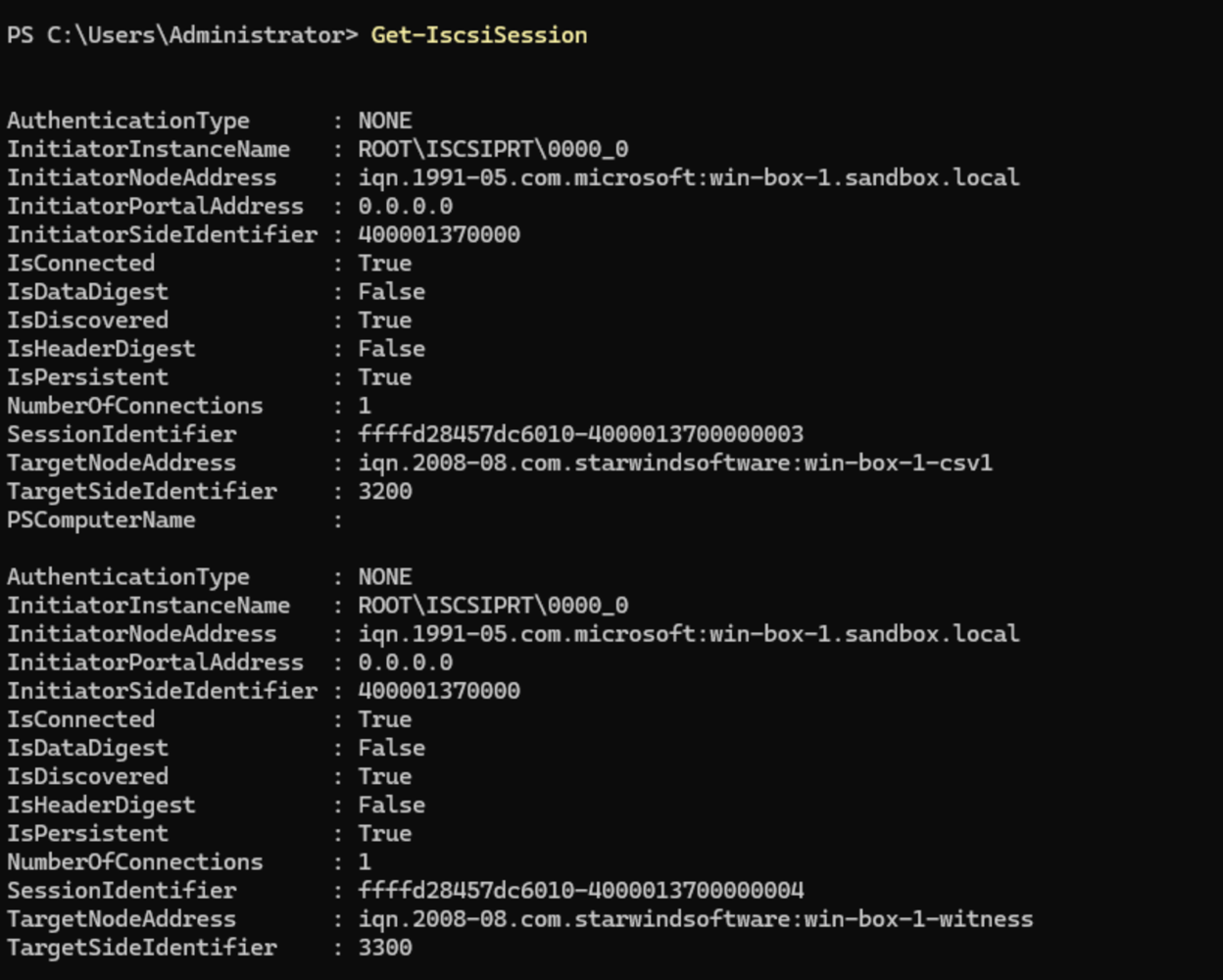
Watch out for the line:
IsConnected : True
Option 3: StarWind Log Collector
This option works for any Windows client that has StarWind VSAN targets connected to it.
- Download StarWind Log Collector https://knowledgebase.starwindsoftware.com/troubleshooting/how-to-collect-logs-with-starwind-log-collector/.
- Save and unzip it.
- Run the *.exe as administrator. The collector will produce a ZIP archive with the logs.
- Open the archive.
- Locate iscsi-report.html.
- Each target must be listed as TRUE in the Connected column. Each target must be connected from each StarWind VSAN replication partner.
Checking iSCSI Paths on VMware ESXi
vSphere Client (vCenter) is the fastest way to verify paths in VMware.
- Navigate to Host: Host → Storage → Adapters.
- Click Refresh and Rescan.
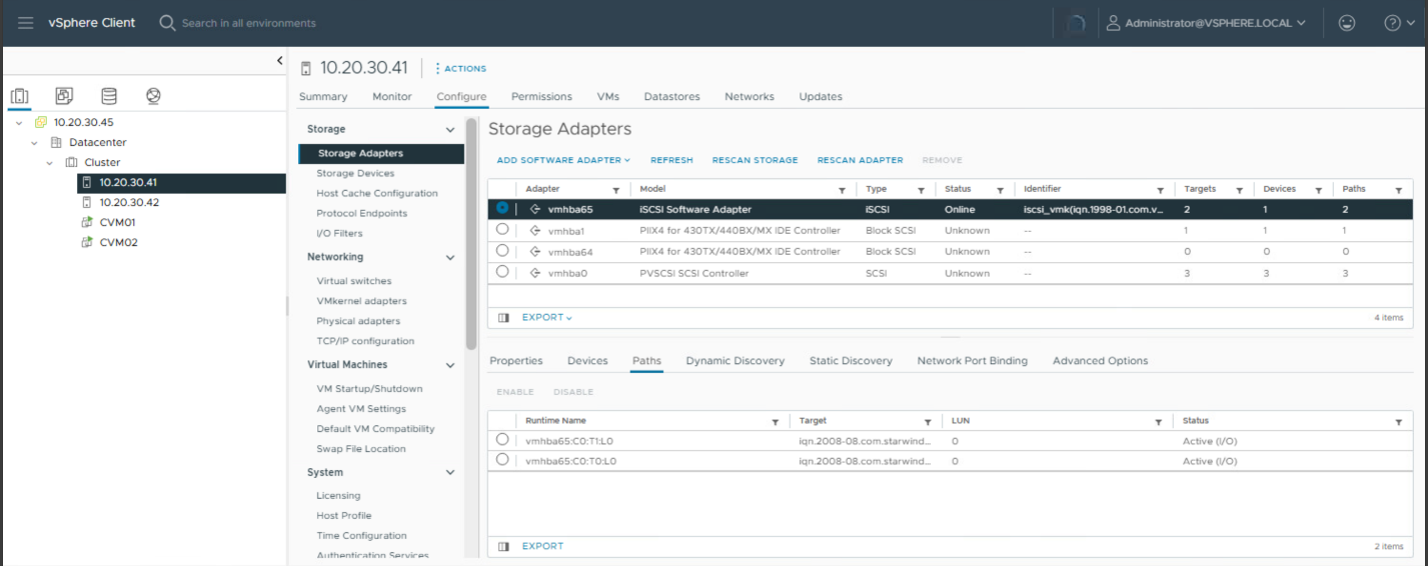
- Verify the individual devices: Go to Host → Storage → Storage Devices → iSCSI LUN → Paths.
- Click Refresh.
- Status Check: All paths and targets for HA devices from all nodes where devices are replicated should be visible and marked as Active (Active I/O).
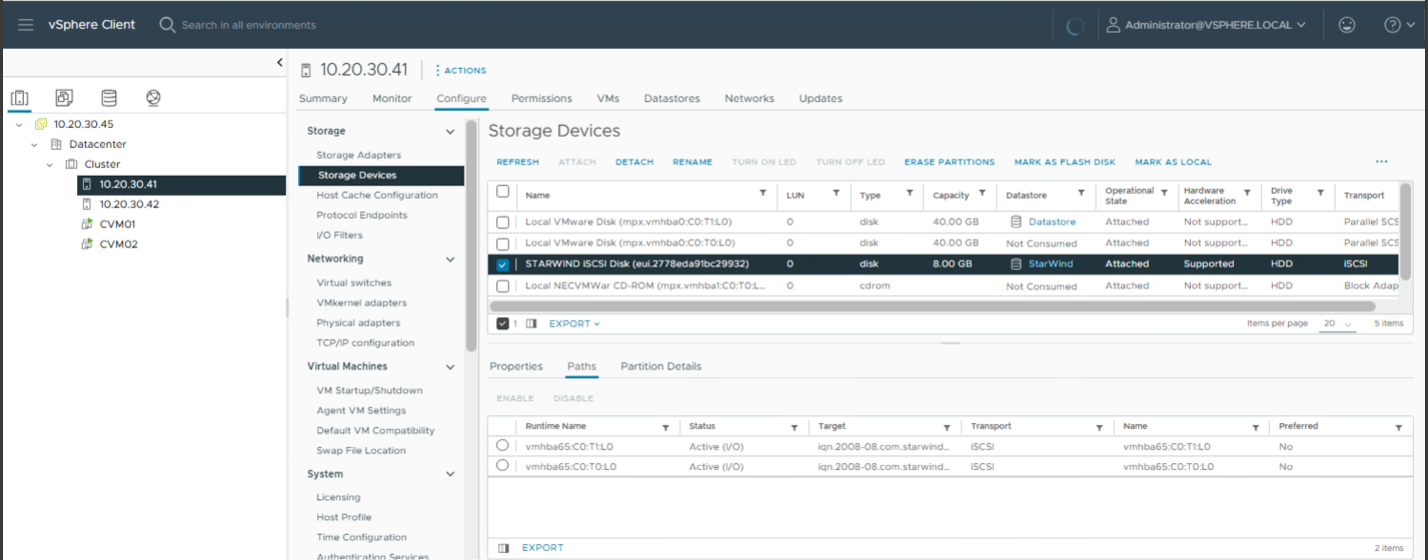
- Status Check: All paths and targets for HA devices from all nodes where devices are replicated should be visible and marked as Active (Active I/O).
Rescan script
An automatic storage rescan script can be configured inside each StarWind CVM. It ensures that all paths to the shared datastores are correctly recognized and fully restored after a system reboot or StarWind HA device resynchronization, keeping the ESXI storage highly available without requiring manual intervention.
See the script configuration guide here: Configuring an Automatic Storage Rescan.
Checking iSCSI Paths on Proxmox VE & KVM
The steps outlined in this section apply not only to Proxmox VE but also to any KVM environment that has the iscsiadm installed.
NOTE: The Proxmox VE GUI does NOT show iSCSI multipath status. It only displays storage configuration, e.g., LUN existence, and whether the storage is “Online”. Therefore, path checking must be done via the CLI.
- Check Multipath Devices
Run the following command to check all multipath devices. Every path should indicate that it is active.
multipath -ll
- List All iSCSI Sessions
Verify active sessions. All targets for HA devices from all replicated nodes should be listed. Watch out for any missing path.
iscsiadm -m session
Healthy Example:
tcp: [1] 192.168.10.20:3260,1 iqn.2008-08.com.starwindsoftware:starwind01-share

tcp: [2] 192.168.10.21:3260,1 iqn.2008-08.com.starwindsoftware:starwind02-share
- Detailed Connection Info (Optional)
Check per-node interfaces using iscsiadm -m iface, or iscsiadm -m session -P 3 for a verbose output:
iscsiadm -m session -P 3
NOTE: Useful All-in-One Health Script
For a quick overview of iSCSI sessions health on Proxmox, run this combined script (individual commands can be reused, if needed):
echo "=== ISCSI SESSIONS ==="

iscsiadm -m session

echo -e "\n=== MULTIPATH STATUS ==="

multipath -ll

echo -e "\n=== DEAD PATHS ==="

multipath -ll | grep -i "failed\|faulty\|offline"

echo -e "\n=== KERNEL BLOCK PATHS ==="

lsblk -o NAME,HCTL,STATE
Rescan script
Rescan script for Proxmox hosts can be configured in each CVM. This script ensures that all paths are correctly recognized after a storage resynchronization (e.g., after host or CVM restarts or a synchronization issue is resolved).
See the rescan configuration guide here: Configure storage rescan.
If there are any iSCSI paths missing (e.g., in iSCSI initiator or CLI output), please check the StarWind HA devices’ synchronization status.
Conclusion
Regular checks of iSCSI paths is an effective routine for preventing unexpected downtime and ensuring optimal storage performance. Methods listed here allow spotting missing or inactive paths before they impact productive workloads. Keep these commands and scripts handy for routine infrastructure health checks to guarantee high availability storage design remains robust, resilient, and ready to handle active I/O.